Build a photo album on Raster
Show, upload, share, and search a library from your own app, with the SDK and an API key your server keeps.
This guide builds a photo album on a Raster library with Next.js. Your server holds the API key; the browser only sees your pages.
npm install @raster-app/sdkKeep the API key on your server
Create an API key in your organization's Settings → Connections, with access to the album's library:
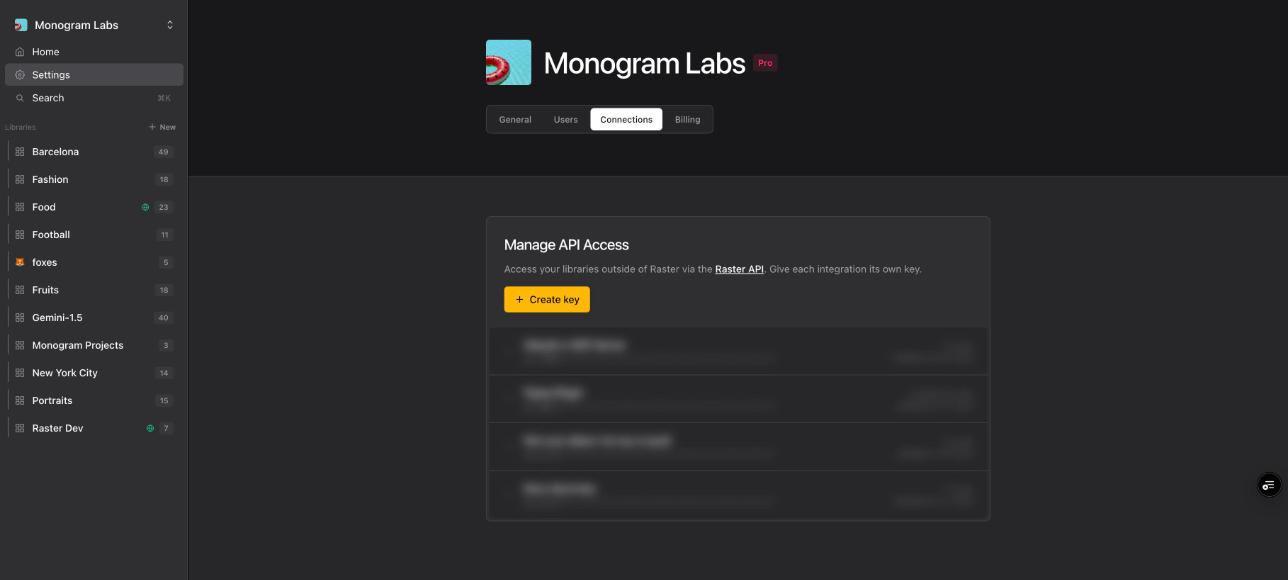
Then set RASTER_API_KEY, RASTER_ORGANIZATION_ID, and
RASTER_LIBRARY_ID. Import this module only from server code:
import { createRasterClient } from '@raster-app/sdk'

export const organizationId = process.env.RASTER_ORGANIZATION_ID!
export const libraryId = process.env.RASTER_LIBRARY_ID!

export const raster = createRasterClient({ apiKey: process.env.RASTER_API_KEY! })
Show the library
import { getLibrary, getThumbUrl, listAssetPage } from '@raster-app/sdk'
import { libraryId, organizationId, raster } from '@/lib/raster'

export default async function Album(props: { searchParams: Promise<{ page?: string }> }) {
  const page = Math.max(1, Number((await props.searchParams).page) || 1)
  const [library, { assets, hasMore }] = await Promise.all([
    getLibrary(raster, { organizationId, libraryId }),
    listAssetPage(raster, { organizationId, libraryId, page }),
  ])

  return (
    <main>
      <h1>
        {library.name} · {library.assetsCount} assets
      </h1>
      <div style={{ display: 'grid', gridTemplateColumns: 'repeat(auto-fill, minmax(200px, 1fr))', gap: 8 }}>
        {assets.map((asset) => (
          <img
            key={asset.id}
            src={getThumbUrl(asset)}
            alt={asset.name ?? ''}
            loading="lazy"
            style={{ width: '100%', aspectRatio: '1', objectFit: 'cover' }}
          />
        ))}
      </div>
      {hasMore && <a href={`?page=${page + 1}`}>Next page</a>}
    </main>
  )
}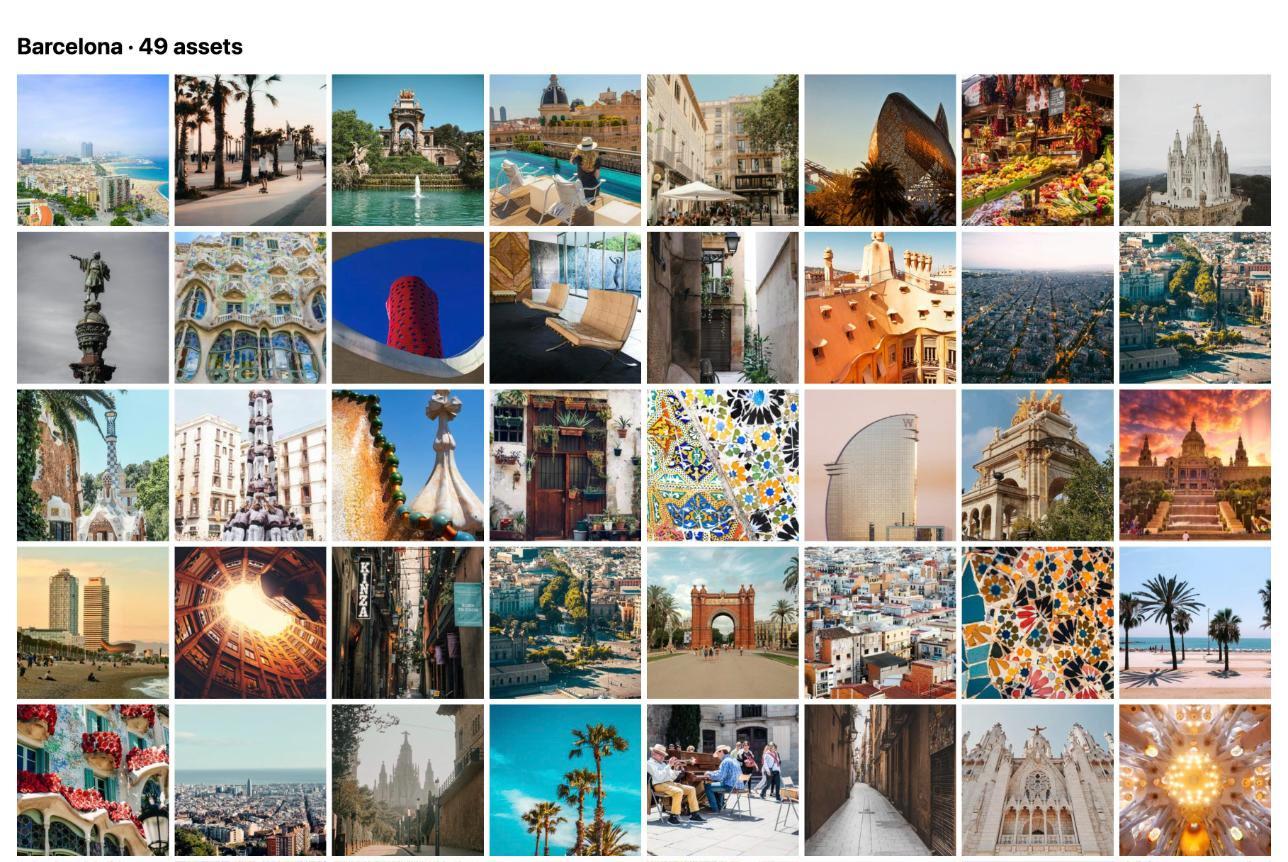
getThumbUrl picks a grid-sized image; use getPreviewUrl for a large view.
Never put the full-size url in a grid. To paint a blurred placeholder while
a thumbnail loads, use getBlurhashPlaceholder in a Client Component.
Upload
import { uploadAsset } from '@raster-app/sdk'
import { libraryId, organizationId, raster } from '@/lib/raster'

export async function POST(request: Request) {
  const file = (await request.formData()).get('file')
  if (!(file instanceof File)) return Response.json({ error: 'No file' }, { status: 400 })
  return Response.json(await uploadAsset(raster, { organizationId, libraryId, source: file }))
}
The new asset's sizes, dimensions, and placeholder arrive a few seconds after
the upload, and so does its place in the list and in search. Until then,
getThumbUrl returns the full-size url.
Share an asset
import { getShareUrl } from '@raster-app/sdk'

const link = getShareUrl(asset)
The link opens the original file and changes when the file is replaced, so
build it from a fresh read of the asset. For a HEIC original, share
getPreviewUrl(asset) instead.
Search
import { searchAssets } from '@raster-app/sdk'

const { hits } = await searchAssets(raster, { organizationId, query, libraryIds: [libraryId] })
Pass the user's words as typed: on paid plans, search also matches by meaning.
Render hits with getThumbUrl. Skip the call for a blank query.
Load assets in the browser
If your users sign in to Raster, or every visitor may read the library with a
shared key, use
useAssets from @raster-app/react for
infinite scroll instead of page links.
Next steps
- Client: every SDK function and image helper.
Asset: the fields an asset carries.- Search endpoint: how search ranks results, and its filters.
Using Raster from an AI agent
A runbook for LLMs and AI agents. Discover Raster, authenticate, and drive a library end to end over MCP or REST, with or without a Raster account.
Start without an account
Spin up a Raster library, upload images, and get a working CDN URL with one call. No signup or key is needed up front, and the user claims the library later from an emailed link.