DatoCMS
Pick, search, and upload Raster assets from DatoCMS records.
The Raster plugin for DatoCMS brings your Raster libraries into the record editor. Editors browse, search, and upload assets, and pick them into a JSON field.
Install and configure
- In your DatoCMS project, open Configuration > Plugins, search the marketplace for Raster, and install it.
- On a model, add a JSON field. Under Presentation, choose Raster as the field editor.
The plugin settings are optional:
- Organization — your organization's slug, like
acmeinhttps://raster.app/acme. With it set, editors sign in to that organization only. - API key for everyone — an organization API key. Editors are then connected without signing in.
DatoCMS hands plugin settings to every collaborator who loads the plugin, so anyone who can edit a record with a Raster field can read a saved key. Use a key with Read access to only the libraries the project needs.
Sign in
Select Browse Raster in a Raster field and connect in one of two ways:
- Each editor signs in. Select Sign in with Raster, open the consent page, and approve the code shown. The browser remembers the session.
- An administrator connects everyone. Save an API key in the plugin settings.
What you can do
Pick assets into a field
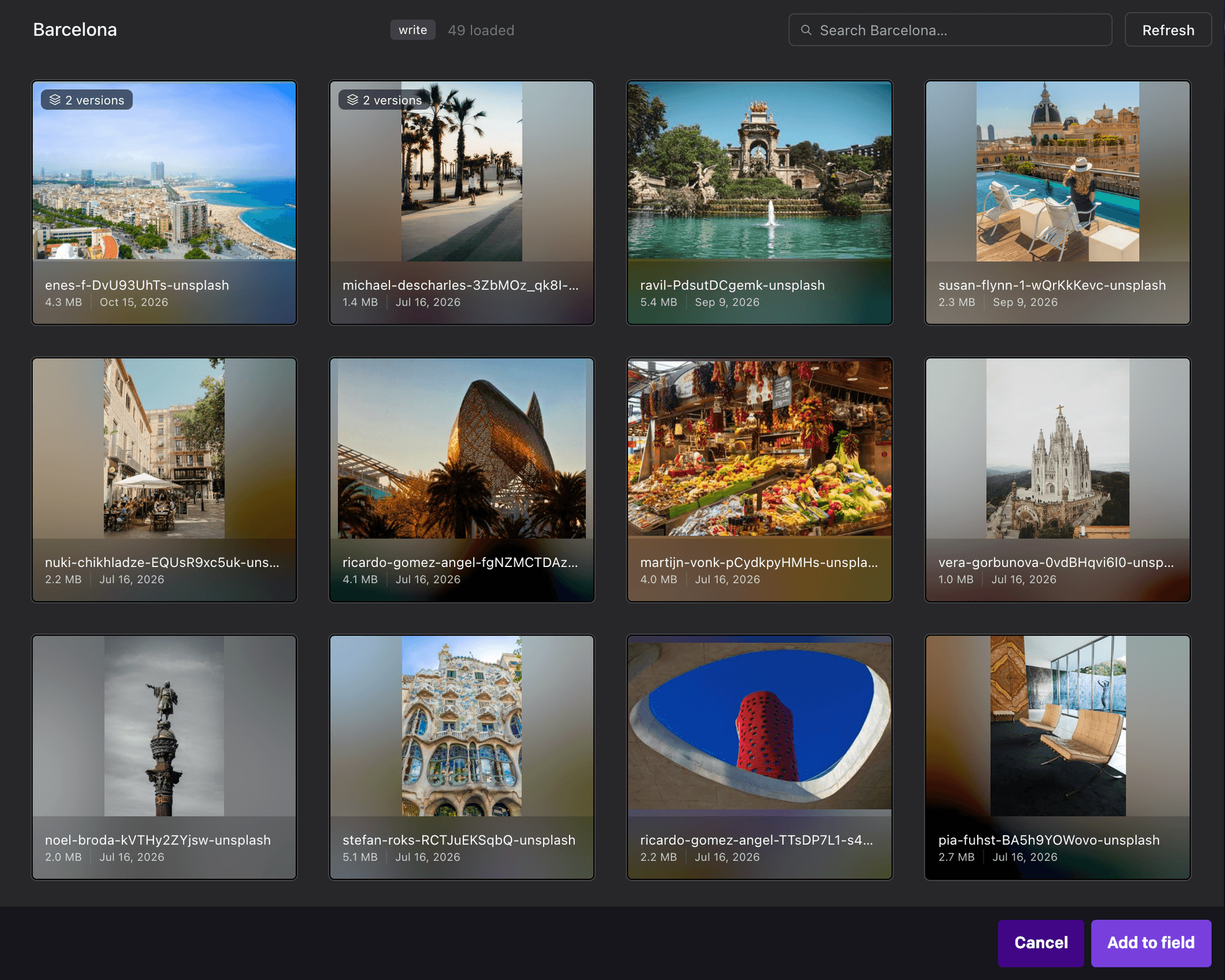
- In a Raster field, select Browse Raster.
- Open an asset and select Pick asset. Repeat for every asset you want.
- Select Add to field.
Drag thumbnails to reorder them, or select × to remove one. Clear selection empties the field.
Browse, search, and upload
- Switch organizations from the menu at the top of the sidebar.
- Open a library from the sidebar to see its assets.
- Search every library, or the open one, from the search field.
- Upload into the open library with Upload in the sidebar, or drop a file onto its assets.
- Open in Raster or Copy URL from the open asset.
- Sign out from the bottom of the sidebar.
The field's value
The field stores a JSON array, one object per asset:
[
  {
    "id": "…",
    "blurhash": "…",
    "sizes": "{\"400\":\"https://…\",\"1080\":\"https://…\"}",
    "url": "https://…",
    "name": "hero.jpg",
    "height": 2000,
    "width": 3000,
    "views": [],
    "description": null,
    "contentType": "image/jpeg"
  }
]urlis the full-size file.sizesis a JSON string that maps each size (the image's longest edge, in pixels) to the URL of the image at that size.viewslists the asset's variants.contentTypeis the file's MIME type. Assets picked with 0.x have none.
Upgrade from 0.x
Upgrade the plugin in Configuration > Plugins. The organization, the API key, and existing records carry over. Without a saved API key, each editor signs in with their own Raster account.
To build your own integration, use the Raster SDK.